07 Jul 2025
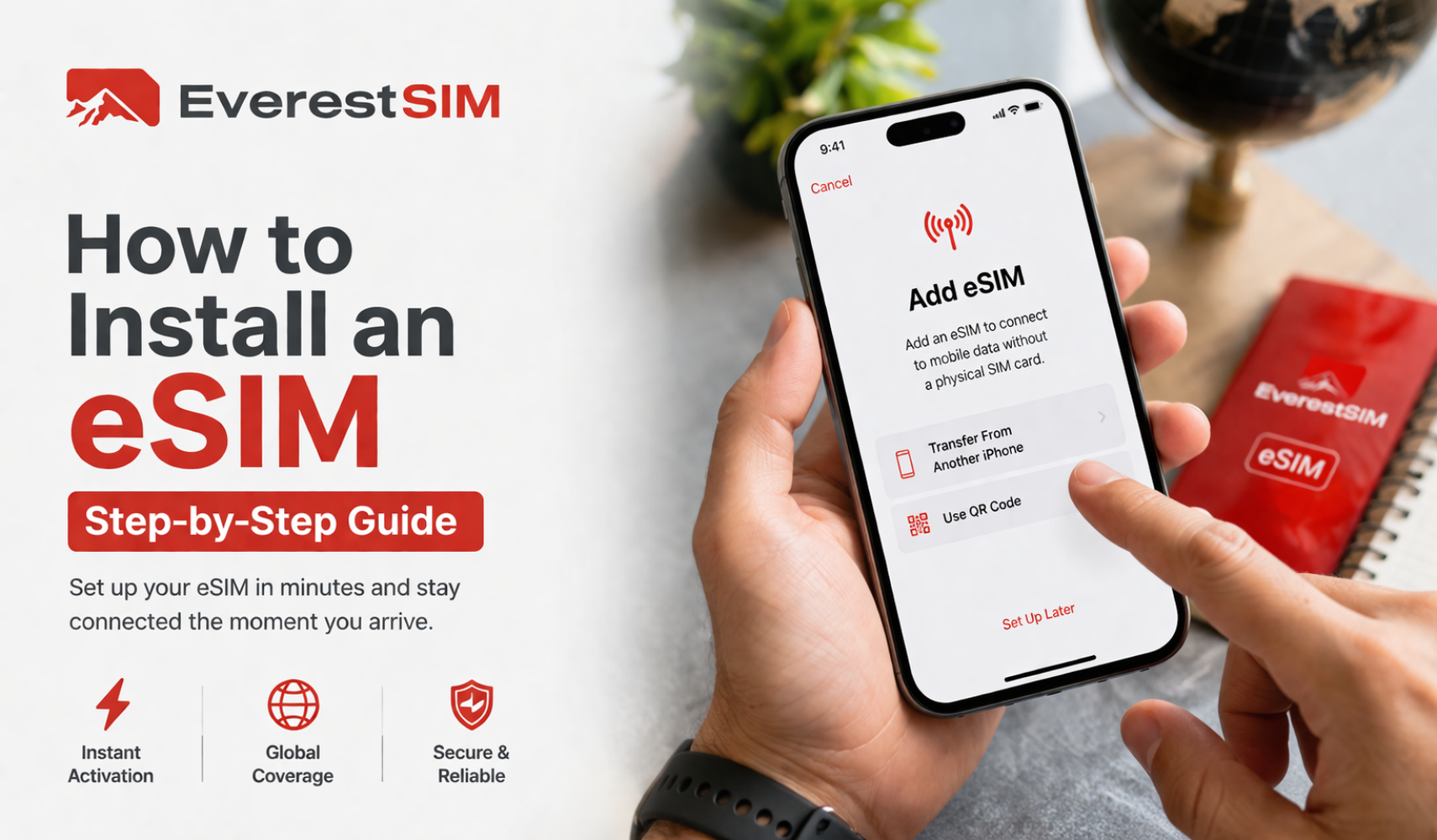
How to Install an eSIM (Step-by-Step)
Setting up an eSIM takes less than 2 minutes. Here’s exactly how to do it.
📱iPhone Setup:
- 1. Go to Settings
- 2. Tap Mobile Data
- 3. Select Add eSIM
- 4. Choose Use QR Code
- 5. Scan the QR code provided after purchase
🤖 Android Setup:
- 1. Go to Settings
- 2. Tap Connections / Network & Internet
- 3. Select SIM Manager
- 4. Tap Add eSIM
- 5. Scan the QR code
⚙️ Important: Activate the eSIM correctly
After installing, complete these steps to ensure your eSIM works properly:
- · Turn OFF your primary (physical) SIM (optional but recommended to avoid roaming charges)
- · Set the eSIM as your primary data line
- · Turn ON Data Roaming for the eSIM
👉 This step is critical; most connectivity issues happen when the primary SIM is still active or data roaming is off.
- 💡 Pro Tips
- · Install your eSIM before travel using stable WiFi
- · Activation typically starts when you connect at your destination
- · Keep your QR code saved for reference
⚠️ Common Mistakes to Avoid
· Ensure Mobile Data is using the eSIM
· Activating the eSIM too early
· Leaving your primary SIM active (can trigger roaming charges)
· Not enabling data roaming
· Selecting the wrong SIM for mobile data
🚀 Get Connected Instantly
Skip the queues and stay connected from the moment you land.
👉 Get your eSIM now at everestsim.com